Creating and selling digital products involves many moving parts: planning content, designing files, writing product pages, answering customer questions, and scheduling promotions. Without a system, tasks get lost and deadlines slip. Project management software gives freelancers and small teams a central place to organize work, track progress, and collaborate. This guide explains what these tools do, the main styles available, and how to choose and set up one that fits your workflow.
What Project Management Software Does
At its simplest, project management software helps you answer three questions: What needs to be done? Who is doing it? When is it due? Beyond that, modern tools offer boards, calendars, timelines, file sharing, comments, automation, and reporting. For a solo creator, they act like a smart to-do list. For a small team, they act as a shared command center.
- Visibility: everyone can see priorities and progress without asking for updates.
- Accountability: tasks have owners and deadlines.
- Consistency: repeatable workflows, such as a product launch checklist, can be reused.
- Less context switching: notes, files, and conversations stay attached to the relevant task.
Common Styles of Project Management Tools
Kanban boards
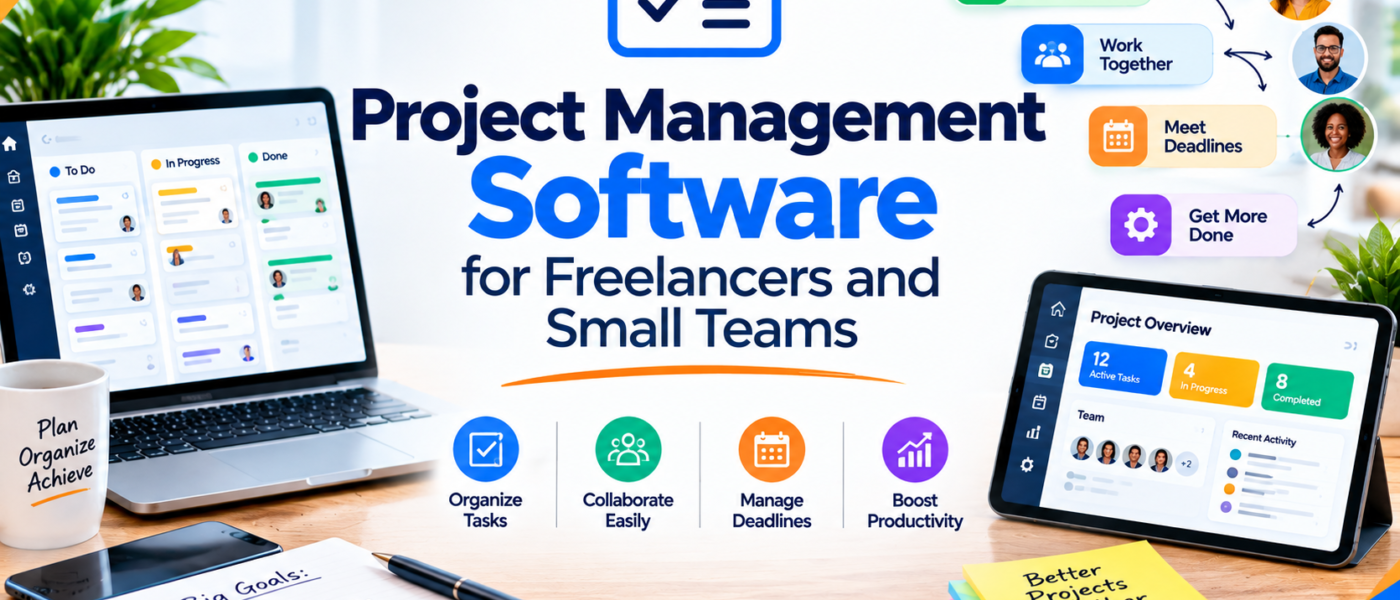
Kanban boards use columns such as \”To do,\” \”In progress,\” and \”Done,\” with cards that move across them. They are visual, intuitive, and ideal for content pipelines, product creation, and simple team workflows. Most beginners find them the easiest style to adopt.
List-based task managers
These tools organize tasks in nested lists with due dates, priorities, and tags. They suit individuals who prefer a straightforward checklist approach and want quick capture of ideas.
Timeline and Gantt views
Timelines show how tasks relate to each other over time, including dependencies. They are useful for larger projects, such as launching a course with multiple deliverables, but can feel heavy for small tasks.
Database and workspace tools
Flexible workspaces let you build your own system using databases, pages, and views. They offer great customization but require setup time. They fit people who enjoy designing their own workflows.
All-in-one work platforms
These combine tasks, documents, chat, goals, and time tracking. They suit growing teams that want everything under one roof, though the number of features can be overwhelming for a very small operation.
Features Worth Paying Attention To
Task details and subtasks
You should be able to add descriptions, due dates, checklists, attachments, and subtasks. Detailed tasks reduce misunderstandings and save time.
Multiple views
The ability to see the same tasks as a board, list, calendar, or timeline lets different people work in the way that suits them.
Templates
Templates for recurring work, such as \”New product launch\” or \”Monthly blog schedule,\” ensure you never forget important steps. Look for tools that let you duplicate projects easily.
Collaboration
Comments, mentions, shared files, and notifications keep communication inside the project. Guest access can be useful if you work with freelancers or clients who need limited visibility.
Automation
Simple rules, such as moving a card to \”Review\” when a checklist is completed or assigning a task when a status changes, remove repetitive admin work.
Integrations
Check whether the tool connects with your calendar, cloud storage, messaging app, and form tools. Smooth integrations help the software fit into your existing routine rather than forcing you to change everything.
Mobile access
A reliable mobile app lets you capture tasks and check updates when you are away from your desk.
Free vs. Paid Plans
Many project management tools offer free plans suitable for individuals and very small teams. Free plans often limit the number of projects, automations, storage, or users, and may omit advanced views. Paid plans typically add more storage, reporting, permissions, and integrations. Start with a free plan to test your workflow, then upgrade only when you consistently run into a limit that slows you down.
How to Choose the Right Tool
- Map your current workflow. Write down the steps from idea to published product. Identify where tasks usually get stuck.
- Decide how many people will use it. A solo creator has different needs from a team of five.
- Pick your preferred style. If you think visually, try a board. If you like checklists, try a list tool.
- List essential features. Examples include due dates, recurring tasks, file attachments, and calendar sync.
- Test two or three options. Add a real project to each and use it for a week.
- Consider long-term growth. Make sure you can export your data if you decide to switch later.
Setting Up a Workflow for Digital Product Creators
A well-structured board can transform how you work. Here is a simple setup you can adapt.
Suggested columns
- Ideas: product concepts, blog topics, and experiments.
- Research: competitor review, keyword notes, and audience questions.
- In production: design, writing, and file creation.
- Testing: checking files on devices, proofreading, and gathering feedback.
- Ready to publish: final files, product pages, and mockups.
- Promotion: emails, social posts, and partnership outreach.
- Done: completed items for reference.
Use labels and due dates
Labels can mark the type of work, such as \”Design,\” \”Writing,\” or \”Marketing.\” Due dates should be realistic. If everything is urgent, nothing is. Reserve high priority for items that genuinely affect a launch or customer experience.
Building a Launch Checklist Template
Creating a reusable checklist ensures consistency across products. A basic launch template might include:
- Finalize product files and compress for delivery.
- Test downloads on desktop and mobile.
- Write the product page and prepare mockup images.
- Set up checkout and confirmation emails.
- Draft the announcement email and social posts.
- Schedule promotional content.
- Prepare a support reply template for common questions.
- Review results one week after launch.
Each time you launch something new, duplicate the template and adjust it. Over months, your process becomes faster and more reliable.
Working With Freelancers and Clients
If you outsource design, writing, or editing, project software helps you share briefs and feedback clearly. Create a task for each deliverable with a description, reference links, and a deadline. Ask collaborators to comment in the task rather than in scattered messages. This keeps decisions documented and prevents repeated questions.
When working with clients on custom products, limited guest access can let them review progress without seeing internal notes. Always check permission settings before inviting outside users.
Habits That Make Any Tool Work
- Capture everything. Write tasks down immediately rather than trusting memory.
- Review weekly. Spend fifteen minutes each week updating statuses, clearing finished items, and planning priorities.
- Limit work in progress. Too many open tasks reduce focus and slow completion.
- Break big tasks down. \”Create course\” is vague; \”Outline module one\” is actionable.
- Archive regularly. Keeping the workspace clean prevents overwhelm.
Common Mistakes
- Choosing an overly complex system and abandoning it after a week.
- Using several tools for the same purpose, which fragments information.
- Skipping deadlines, which makes the tool feel like a storage box rather than a planning aid.
- Not training collaborators on how the board should be used.
- Ignoring data export options, which can lock you into a platform.
Data Security and Privacy
Project tools may contain product plans, customer information, and credentials. Protect your account with a strong password and two-factor authentication. Review sharing settings regularly, avoid storing sensitive customer data in task comments, and remove access for people who no longer work with you. If you handle personal information about customers, follow the privacy rules that apply in your region.
Keeping Your Workspace Light
A project board can become cluttered if you never clean it. Set a monthly reminder to archive completed cards, delete outdated ideas, and review labels that you no longer use. A lighter workspace loads faster, feels less overwhelming, and makes it easier to see what truly needs attention. If you notice that you avoid opening the tool, treat that as a signal to simplify. Remove columns, merge similar labels, and reduce the number of fields on each task until the system feels easy to maintain.
Frequently Asked Questions About Project Management Tools
Is a project management tool worth it for a solo creator?
Yes, if you regularly juggle several tasks. Even a simple board can reduce mental load and ensure that important but non-urgent tasks, such as updating older products or writing new blog posts, do not get forgotten. Free plans are usually sufficient at this stage.
How do I get a team to actually use the tool?
Keep the setup simple, explain the rules in a short document, and lead by example. Move all task conversations into the tool, and avoid assigning work through scattered messages. Review the board together in a brief weekly meeting so that everyone sees the value of keeping it current.
What is the difference between a task manager and a project manager?
Task managers focus on individual to-dos, while project management tools add structure for multi-step projects, dependencies, timelines, and team collaboration. If your work is mostly independent tasks, a task manager may be enough. If tasks depend on each other or involve several people, a project tool is more helpful.
How many projects should I have open at once?
Fewer than you think. Limiting active projects to two or three helps you finish work instead of constantly switching. Keep other ideas in an \”Ideas\” or \”Later\” list and review them periodically.
Using Reports and Reviews to Improve
Many tools offer simple reports showing completed tasks, overdue items, and workload. Look at these numbers during your weekly review. If certain types of tasks are repeatedly late, ask why. They might be too large, poorly defined, or dependent on someone else. Adjusting your estimates and breaking tasks into smaller parts makes your planning more realistic over time.
Keep a short log of lessons learned after each product launch. Note what went well, what caused delays, and what you would change. Store this log in the same workspace so that it informs your next project template.
Final Thoughts
The best project management tool is the one you open every day. Start simple, build a workflow that mirrors how you really work, and refine it over time. A clear board, a few templates, and a weekly review habit can dramatically reduce stress and improve the quality of your digital products. Whether you work alone or with a small team, good organization gives you more time to focus on what matters most: creating useful products for your customers.